
Business Wi-Fi Milwaukee: best practices that actually work
Modern work runs on wireless. When Wi-Fi stalls, calls drop, carts abandon, and support lines fill up. Business Wi-Fi Milwaukee should feel fast, safe, and easy to manage every day—not only in the first week after install. This guide explains what to plan, where to place access points, and how to secure and tune your network so it stays reliable as you grow.
RedBird Technology Solutions serves Milwaukee and nearby cities, and for commercial projects we travel up to 45 miles for new installations.
Start with a plan (coverage, capacity, and change)
Strong networks begin on paper. First, define coverage—every room should receive a usable signal. Next, estimate capacity—how many devices will connect at the same time and what they will do. Finally, expect change—moves, hires, and remodels will happen, so the design must be easy to adjust later.
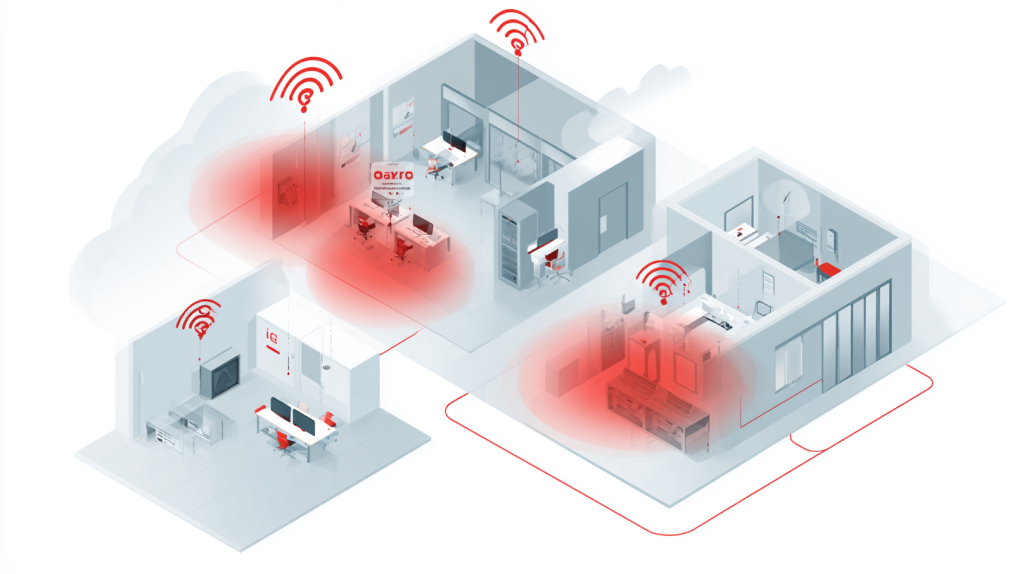
Walk your site with a simple floor plan. Mark thick walls, coolers, metal racks, elevators, conference rooms, kitchens, patios, and docks. Note where people gather: meeting rooms, training spaces, checkout lanes, and lobbies. Because these areas fill up quickly, they often need extra access points (APs) or higher-capacity models.
Choose business-grade gear, not home routers
Consumer routers look inexpensive, yet they struggle with dozens of devices, guest portals, and updates. For business Wi-Fi Milwaukee, select Wi-Fi 6 or 6E access points that support Power over Ethernet (PoE) and centralized management (cloud or controller). With a controller, you push one configuration to every AP, apply updates in a single window, and keep SSIDs consistent across floors and sites. This saves time now and prevents configuration drift later.
How many access points—and where to put them
A useful rule of thumb for open offices is one AP per 1,000–1,500 square feet. Warehouses, clinics, schools, and event spaces vary more, so treat that as a starting point and validate with a quick heat map.
Placement tips that prevent headaches:
- Ceiling mounts work best. Mount APs at or slightly below the ceiling tile so the signal spreads evenly.
- Keep 15–25 feet between APs in typical offices; add more space if ceilings are high and line-of-sight is clear.
- Avoid interference sources such as HVAC blowers, microwaves, motors, and dense bundles of power lines.
- In warehouses, install APs above aisles and aim them down the runs; tall racks behave like walls.
- For outdoor coverage, use weather-rated APs under eaves or on poles and protect cabling in conduit.
After mounting, confirm with a quick pass using a heat-mapping app. Even a simple scan shows dead zones before users do.
Cabling and PoE that last
Great wireless still needs great wires. Run Cat6 or Cat6A to every AP, powered by PoE+ or PoE++ switches. Label both ends of each cable, leave a small service loop above the ceiling tile, and protect runs with conduit in warehouses and docks. These small steps make future moves faster and keep your network stable when equipment changes.
SSIDs and VLANs that make sense
Too many SSIDs slow the air and confuse users. Keep it simple:
- A Staff SSID on the primary business VLAN.
- A Guest SSID on its own VLAN with internet-only access.
- An optional IoT SSID for printers, tablets, and specialty devices on a restricted VLAN.
Limit yourself to three SSIDs or fewer. Because each SSID adds management traffic, fewer is usually faster.

Business Wi-Fi Milwaukee security checklist
Wireless touches every device in your building. A few smart settings block common problems:
- Use WPA3 where clients support it; fall back to WPA2 only when necessary.
- Protect the controller and switch logins with MFA, and store admin passwords in a manager.
- Turn on client isolation for the guest SSID so visitors cannot see each other.
- Keep guests on a separate VLAN with firewall rules that allow internet access but block internal resources.
- Rotate guest credentials or use short-lived vouchers.
- Disable WPS and any services you do not use.
- Schedule firmware updates and apply them during a maintenance window.
With these basics in place, your guest network stays friendly while your business systems remain private.
Channels, power, and roaming—tuning the air
Wi-Fi performance depends on how radios share the air. Good tuning prevents sticky clients and random slowdowns.
- Allow the controller to auto-select channels based on neighbor activity; manually fix only chronic problem areas.
- Use 20 MHz channels in 2.4 GHz where congestion is high. In 5 and 6 GHz, 40/80 MHz channels usually work well.
- Keep transmit power balanced across APs so devices roam instead of clinging to a weak signal.
- Enable band steering to nudge modern devices toward 5 or 6 GHz.
- Turn on fast roaming features (802.11r/k/v) when client devices support them.
Test by walking a voice or video call through the office. If audio drops when you pass a doorway, reduce channel width or transmit power and test again.
Capacity planning and ISP sizing
Coverage alone does not guarantee speed. You also need enough bandwidth for busy moments.
- Count peak devices per zone: laptops, phones, tablets, scanners, POS, TVs, and guest devices.
- Budget 3–5 Mbps per active user for standard work; heavy video or large downloads require more.
- Apply rate limits on the guest SSID so one device does not soak up the pipe.
- Prioritize calls and meetings using QoS for voice and video traffic.
Finally, check your internet circuit. A flawless Wi-Fi design will still feel slow if the ISP link is undersized.
Guest Wi-Fi that protects the office
Visitors expect quick logins, not security risks. Use a captive portal with simple terms and time limits. Keep guests on the guest VLAN with content filtering for malware and risky sites. Add per-device rate limits and consider blocking peer-to-peer tools that can clog the air. Because guests are outside your security policy, isolation keeps their devices from touching anything important.
Voice, video, POS, and scanners
Real-time apps demand clean design:
- Place APs so meeting rooms receive strong, even signal rather than a hotspot at one end.
- Put voice and video on tagged VLANs and apply QoS, especially if you use softphones or Teams/Zoom.
- Keep POS devices on an IoT VLAN with only the ports they need; wire them if possible.
- For handheld scanners, prefer 5 GHz or 6 GHz when supported and tune roaming around aisles and docks.
Small changes here usually eliminate dropped calls and slow checkouts.
Redundancy and uptime
Because work stops when Wi-Fi fails, add a little insurance:
- Use a stack or pair of core switches at critical sites.
- In large rooms, deploy two APs so one failure does not leave a dead zone.
- Protect controllers, switches, and ISP equipment with a UPS.
- Keep a spare AP and spare switch on the shelf for fast swaps.
- Export controller backups after every change.
With these pieces ready, outages become brief and predictable instead of long and chaotic.
Monitoring, alerts, and logs
Networks give early hints when something drifts. Turn on email or SMS alerts for AP offline, high retry rates, and unusual client counts. Review top talkers and utilization monthly. Track firmware versions and schedule updates together so the fleet stays consistent. When policy requires it, send device logs to a collector for change history.
Because you measure consistently, you can improve calmly.
Tips for warehouses and industrial sites
Warehouses are not just big offices; steel and motion change everything.
- Use directional APs down aisles so the signal follows people and scanners where they work.
- Add cages around APs near forklift paths to prevent bumps.
- Extend Wi-Fi to docks and yards with outdoor-rated models and shielded cable.
- Test during live operations; empty buildings hide problems that appear once forklifts roll and scanners chirp.
These details transform choppy scans into smooth inventory moves.
Tips for small offices and clinics
Clinics, agencies, and small firms need dependable calls and simple logins.
- Start with one AP per 1,000–1,200 sq ft, centered in the ceiling tile.
- Place APs near telehealth or high-meeting areas for clear audio and video.
- Keep a staff SSID private and a guest SSID isolated in waiting areas.
- Enforce MFA for cloud apps that staff use over Wi-Fi.
- Review firmware and passwords during regular maintenance, not just after an incident.
Because the layout is simple, these sites benefit most from neat cabling and clear labeling.
Outdoor storefronts and patios
Curbside pickup and outdoor seating depend on signal outside the walls. Choose weather-rated APs, mount under eaves to avoid direct sun and rain, and run shielded cable with drip loops. Reduce transmit power outdoors so devices roam back inside naturally. If you want shorter sessions outside, use a separate SSID with a tighter time limit.
Remember to test both summer and winter; leaves and snow change signal paths.

Security cameras and Wi-Fi
Most cameras should live on wired PoE, but some sites use wireless bridges.
- Put cameras and bridges on an IoT VLAN with strict firewall rules.
- Avoid streaming camera traffic on staff SSIDs.
- Use point-to-point bridges for outbuildings and aim them carefully.
- Keep NVRs wired on UPS for stability.
This separation keeps video smooth and leaves office Wi-Fi free for work.
Maintenance that keeps performance steady
Short, repeatable tasks prevent long, messy problems.
Monthly
- Check alerts, retry rates, and AP utilization.
- Scan for new neighbor networks and adjust channels if needed.
- Wipe dusty APs in kitchens or loading areas.
Quarterly
- Review coverage and capacity; add APs where teams or devices grew.
- Test the guest portal and confirm rate limits.
- Export and store controller backups.
Yearly
- Schedule a fleet-wide firmware update.
- Re-label ports, tidy racks, and refresh diagrams.
- Re-walk the site after any remodel or furniture move.
Because maintenance is lightweight and scheduled, your business Wi-Fi Milwaukee deployment stays quick and calm.
Step-by-step rollout: Business Wi-Fi Milwaukee
- Assess walls, power, cable paths, and busy rooms.
- Design AP layout, SSIDs, VLANs, controller, and ISP sizing.
- Install Cat6/Cat6A and PoE switches; label everything.
- Mount APs on ceilings; set channels, power, and fast roaming.
- Secure with WPA3, guest isolation, VLAN rules, and MFA on admin logins.
- Test roaming with real calls, video meetings, POS, and scanners.
- Train the team on the guest process and who to contact for help.
- Monitor alerts and usage; schedule updates.
- Review growth each quarter and add capacity as needed.
Follow this path and the network will feel stable on day one—and just as stable a year later.
How RedBird helps Milwaukee businesses
- Design & heat map: we plan coverage and capacity for your actual rooms, aisles, and patios.
- Clean install: PoE switches, labeled cabling, tidy racks, and tested AP mounts.
- Secure setup: WPA3, VLANs, guest isolation, and strong controller access with MFA.
- Voice & video tuning: QoS and roaming verified with real walk-tests.
- Monitoring & updates: we watch health, handle alerts, and schedule maintenance windows.
- Quarterly reviews: together we track growth and plan the next steps so Wi-Fi never becomes a bottleneck.
You focus on work. We keep the wireless fast and safe.
Service area
We serve Milwaukee, Wauwatosa, West Allis, Glendale, Shorewood, Whitefish Bay, Brookfield, Menomonee Falls, Oak Creek, Greenfield, Franklin, New Berlin, Mequon, Cedarburg, Grafton, Waukesha, Pewaukee, Racine, and Kenosha. For commercial work, we drive up to 45 miles for new installations.
FAQ for decision makers
How many APs do we need?
It depends on walls and users. Open offices often start near one AP per 1,000–1,500 square feet; high-density rooms and warehouses need more. We confirm with a heat map.
Do we need Wi-Fi 6E?
If you own many modern devices or the 5 GHz band is crowded, 6E helps a lot. Otherwise, Wi-Fi 6 remains a solid choice.
Can guests slow down staff Wi-Fi?
Not if you isolate guests with VLANs, add per-device rate limits, and prioritize voice and video for staff.
Should POS use Wi-Fi?
Wired is best. When wireless is required, place POS on a locked IoT VLAN and test roaming during busy hours.What causes dropped calls?
Usually sticky clients, interference, or a poorly placed AP. Adjust channel width and transmit power, then retest with a walk-and-call.